
I’ve noticed one recurring problem with the default SureCart checkout: the coupon area is easy for customers to miss. Especially when mixed with all the other fields.
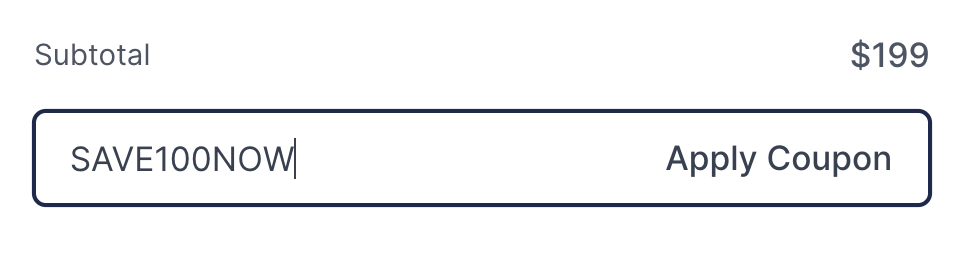
Even when customers know they have a coupon, they may not immediately notice where to enter it. And after entering the coupon code, some customers don’t realize they still need to click Apply Coupon before completing the order.
The default coupon area is simply a little too subtle.

What We’re Going to Fix
- Make the coupon area more noticeable by increasing the size and weight of the text.
- Change Add Coupon Code to Click to Add Coupon Code so customers know it’s clickable.
- Make Apply Coupon bright and noticeable so customers understand there is one more step after entering the code.
The First Attempt: SureCart Root CSS
SureCart provides CSS variables that make it easy to change the general appearance of the checkout.
For example, we can make the Apply Coupon text larger and orange with:
:root:root {
	--sc-color-gray-700: #EA580C;
	--sc-button-font-size-medium: 1.05em;
}
And it works. The Apply Coupon text becomes larger and orange.
But There’s a Problem
--sc-color-gray-700 is not used exclusively by the coupon button. SureCart uses the same color variable in other parts of the checkout.
So while the change makes Apply Coupon orange, it can also change text inside other fields such as the customer’s Name field.

We only want to change the coupon area.
Why Normal CSS Isn’t Enough
SureCart uses Web Components and Shadow DOM for many of its checkout elements.
The coupon form is essentially structured like this:
Checkout Page
    ↓
sc-order-coupon-form
    ↓
Shadow DOM
    ↓
sc-coupon-form
    ↓
Shadow DOM
    ↓
Coupon Controls
The actual Apply Coupon button is therefore not sitting directly in the normal WordPress page HTML.
CSS variables can pass through Shadow DOM, which is why our first example worked. But because the variable we changed is shared by other SureCart elements, it affected more than just the coupon button.
The better solution is to use a small amount of JavaScript to reach the coupon component and place our styling directly inside it.
The important difference: instead of changing a global SureCart color, we’re targeting only the coupon component.
How the Customization Works
1. Only Run the Code on the Checkout Page
There is no reason to load this JavaScript throughout the entire WordPress site.
If your checkout page is:
/checkout/we can use WordPress’s is_page() function:
if ( ! is_page( 'checkout' ) ) {
	return;
}
In plain English, this says:
If this is not the checkout page, stop here.
If your checkout uses another URL, simply replace checkout with your own page slug.
2. Find the SureCart Coupon Form
The JavaScript first finds SureCart’s outer coupon component:
document.querySelectorAll('sc-order-coupon-form')Then it enters the first Shadow DOM and finds the actual coupon form:
const couponForm =
	orderForm.shadowRoot?.querySelector('sc-coupon-form');
Once we have access to couponForm.shadowRoot, we can work directly with the coupon controls without changing unrelated checkout fields.
3. Change the Wording and Styling
The default SureCart wording is:
Add Coupon Code
We’re going to make the action clearer by changing it to:
Click to Add Coupon Code
This JavaScript changes the wording:
const label =
	couponForm.shadowRoot.querySelector('.trigger slot[name="label"]');

if (label) {
	label.textContent = 'Click to Add Coupon Code';
}
Then we make that line larger and bold:
.trigger {
	font-weight: 700 !important;
	font-size: 1.15em !important;
}
Finally, we make Apply Coupon stand out with a bright orange:
.coupon-button::part(base),
.coupon-button-mobile::part(base) {
	color: #EA580C !important;
	font-weight: 600 !important;
	font-size: 1.05em !important;
}
Both the desktop and mobile coupon buttons are included.
4. Handle SureCart’s Dynamic Checkout
SureCart can build or refresh parts of the checkout after the page initially loads.
We run our customization immediately:
customizeCouponForm();Then a MutationObserver watches for SureCart adding or refreshing elements:
new MutationObserver(customizeCouponForm).observe(document.body, {
	childList: true,
	subtree: true
});
This is cleaner than using arbitrary delays because the code responds to actual changes on the page.
We also give our custom stylesheet an ID so it is inserted only once:
style.id = 'surecart-coupon-style';Finished SureCart Coupon Code
Here is the complete code. I’ve marked the areas you may want to customize with *** CHANGE THIS ***.
Before copying: The checkout page slug is the only setting you must change if your checkout is not located at /checkout/. The wording, colors and sizes are optional design choices.
<?php
/**
 * Customize the SureCart coupon form on the checkout page only.
 */
add_action( 'wp_footer', function() {

	// *** CHANGE THIS ***
	// Replace 'checkout' with your checkout page slug.
	if ( ! is_page( 'checkout' ) ) {
		return;
	}
	?>

	<script>
	(function () {

		function customizeCouponForm() {

			document.querySelectorAll('sc-order-coupon-form').forEach(function(orderForm) {

				const couponForm =
					orderForm.shadowRoot?.querySelector('sc-coupon-form');

				if (!couponForm?.shadowRoot) return;


				/* Change coupon label */
				const label =
					couponForm.shadowRoot.querySelector('.trigger slot[name="label"]');

				if (label) {

					// *** CHANGE THIS ***
					// Change the wording if desired.
					label.textContent = 'Click to Add Coupon Code';
				}


				/* Add styling once */
				if (!couponForm.shadowRoot.querySelector('#surecart-coupon-style')) {

					const style = document.createElement('style');

					style.id = 'surecart-coupon-style';

					style.textContent = `

						.trigger {

							/* *** CHANGE THESE *** */
							/* Coupon heading weight and size */
							font-weight: 700 !important;
							font-size: 1.15em !important;
						}

						.coupon-button::part(base),
						.coupon-button-mobile::part(base) {

							/* *** CHANGE THESE *** */
							/* Apply Coupon color, weight and size */
							color: #EA580C !important;
							font-weight: 600 !important;
							font-size: 1.05em !important;
						}

					`;

					couponForm.shadowRoot.appendChild(style);
				}

			});
		}


		/* Run once */
		customizeCouponForm();


		/* Catch SureCart if it renders or refreshes dynamically */
		new MutationObserver(customizeCouponForm).observe(document.body, {
			childList: true,
			subtree: true
		});

	})();
	</script>

	<?php
}, 100 );
What You May Want to Change
Checkout page: If your checkout is located at /checkout/, leave is_page( 'checkout' ) alone. Otherwise, replace checkout with your page slug.
Coupon wording: Change Click to Add Coupon Code to whatever instruction you prefer.
Coupon heading: Adjust 700 and 1.15em to change its weight and size.
Apply Coupon: Change #EA580C, 600 or 1.05em to match your own website.
Add the Code to Your Child Theme’s functions.php
Add the complete PHP block to your active WordPress child theme’s functions.php file.
Do not edit the SureCart plugin files. Changes made directly inside a plugin can be overwritten the next time SureCart is updated.
The code uses WordPress’s wp_footer hook:
add_action( 'wp_footer', function() {This places our small JavaScript customization near the bottom of the page.
But because we immediately check:
if ( ! is_page( 'checkout' ) ) {
	return;
}
the script is only output on the checkout page. It does not get added throughout the rest of your website.
The Result
Instead of SureCart’s fairly understated:
the customer now sees a much clearer:

After entering the coupon, the bright orange Apply Coupon provides a much stronger visual reminder that the code still needs to be applied.
Instead of:
We now have:
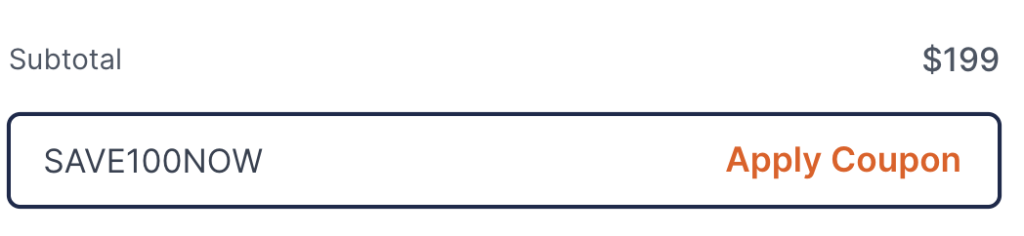
And because we’re targeting the SureCart coupon component directly instead of globally changing --sc-color-gray-700, fields such as Name, Email and other checkout information keep their normal formatting.
My takeaway: Use SureCart root CSS variables to change the checkout globally. When you need to customize one specific element inside SureCart’s Shadow DOM, target that component directly instead.

